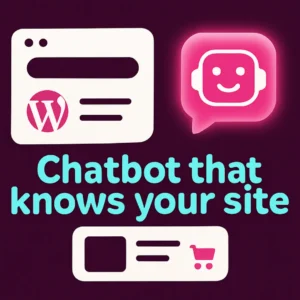
If you want a WordPress AI chatbot that answers visitors with accurate information from your site without dragging down page speed, this guide walks you through the practical choices, setup considerations, and real-world trade-offs. You’ll learn when a lightweight AI chatbot is the right fit, how to make it fast and privacy-friendly, and what to test after installation.
Why choose a lightweight WordPress AI chatbot?
Not all AI chatbots are the same. Some promise a wide feature set but load many scripts, rely heavily on third-party tracking, or push every request through remote servers. A lightweight WordPress AI chatbot prioritizes three things: fast load times, accurate answers trained on your site content, and minimal third-party bloat. That combination is ideal for brochure sites, small WooCommerce stores, and service businesses that need quick answers and better conversions without sacrificing performance.
What problem this article solves
This article helps you choose and configure an AI chatbot plugin that understands your WordPress content (pages, posts, product descriptions) while keeping site speed, privacy, and user experience top of mind. You’ll get concrete planning steps, configuration tips, common mistakes to avoid, and links to further resources.
Primary decision factors
- Where the chat model runs: on your server, in the browser, or via an external API. Each has speed, cost, and privacy trade-offs.
- Content training method: does the plugin index your site directly, connect to your site search, or require manual upload of documents?
- Script weight and lazy loading: how many JS/CSS assets load on every page and whether the chat UI is deferred.
- WooCommerce support: product awareness, SKU lookups, and conversational product finders if you run a store.
How to plan your chatbot integration
Planning shortens setup time and prevents surprises. Start with these four practical steps:
- Define primary use cases: lead capture, FAQ answering, product discovery, or order support. Prioritize one or two to keep scope small.
- Inventory content sources: list pages, knowledge-base posts, WooCommerce product descriptions, and key documents you want the bot to use.
- Set performance targets: aim for an initial widget payload under ~50–80 KB and ensure the bot’s script is deferred or loaded only on key pages.
- Decide privacy rules: whether chat logs are stored, how long they’re retained, and whether PII is masked or prevented from being sent to third-party models.
Choosing the right architecture
There are three common architectures for WordPress AI chatbots:
1) Server-side indexing + API model
Content is indexed on your server and the chatbot calls an external model (OpenAI, Anthropic, etc.) for answers. Pros: accurate, consistent answers. Cons: network latency and potential data-sharing concerns. If you use this route, ensure your plugin supports minimal, batched requests and that sensitive data is excluded.
2) Lightweight on-site inference (hybrid)
Some plugins use small local models or retrieve short snippets from your index and only send the snippet to the model. This reduces token usage and improves response relevance. This hybrid approach balances speed and privacy but can be limited for complex reasoning.
3) Client-side widget with remote search
Client-side widgets can deliver very fast perceived performance by lazy-loading the UI and making background requests only after interaction. The trick is to keep initial JS small and fetch content indexes asynchronously.
Performance and best practices
Follow these hands-on tips to keep your WordPress AI chatbot fast and unobtrusive:
- Lazy-load the widget: don’t load the chatbot files until a visitor interacts with the page or scrolls to a trigger zone.
- Serve minified assets: combine and minify the chat CSS/JS, and use your caching/CDN layer for static assets.
- Limit background indexing frequency: schedule site-index updates during low-traffic hours instead of re-indexing on every content save.
- Use selective content indexing: exclude low-value pages (thin affiliate pages, admin-only content) to reduce index size and noise.
- Monitor performance: test page speed with and without the chatbot enabled and measure real user metrics to ensure the plugin stays within your targets.
For plugin development and performance guidance you can reference WordPress’s official developer best practices for plugins, which cover optimization and code organization. WordPress Plugin Handbook: Best Practices.
WooCommerce and product discovery
If you run WooCommerce, pick a chatbot that understands product attributes and can surface product cards or filtered results. Useful features include natural-language product search (“red running shoes size 10”), quick add-to-cart actions, and conversational product recommendations. Index product metadata (SKU, categories, tags) and test a sample of typical customer queries to ensure accuracy.
Common mistakes to avoid
- Installing multiple chat plugins: extra widgets and overlapping scripts cause conflicts and bloat.
- Indexing everything blindly: low-value content dilutes answer quality—be selective.
- No performance monitoring: without A/B tests or speed checks you won’t know the real impact.
- Ignoring privacy and compliance: configure log retention and PII handling up front.
Example configuration checklist
- Install the chatbot plugin and enable only the features you need (FAQ, product lookup, lead capture).
- Run a focused content index: include main pages, top blog posts, and product data; exclude admin-only pages.
- Enable lazy-loading for the widget and defer heavy scripts.
- Connect analytics events for goal tracking (conversions, chat starts, product clicks).
- Regularly review chat transcripts and adjust the indexed sources to improve answer quality.
Further reading and case studies
See how a chatbot trained on site content can transform engagement in our post about custom chatbots: Why Your WordPress Website Needs a Custom Chatbot. For implementation approaches and deeper integration patterns, read our guide on building custom chatbots: Revolutionize Your WordPress Site with Custom Chatbots.
Visible FAQ
1. Will adding an AI chatbot slow down my WordPress site?
Not if you choose a lightweight plugin and follow best practices like lazy-loading, selective indexing, and serving minified assets. Test performance before and after activation to confirm.
2. Can a chatbot be trained only on my WordPress content?
Yes—many plugins index pages, posts, and product descriptions so the bot answers using content from your site. Verify that the plugin supports scheduled re-indexing and content exclusions you need.
3. Is it safe to send chat data to external AI models?
It can be, but you should review the plugin’s privacy settings and the model provider’s data policies. Mask or avoid sending PII, and set clear retention rules for transcripts.
4. Do AI chatbots work well for WooCommerce stores?
When configured to index product metadata and handle SKU/category filters, chatbots can significantly improve product discovery and conversions. Test common shopping queries during setup.
5. How do I measure ROI from a chatbot?
Track metrics like chat-start rate, assisted conversions, reduction in support tickets, and lead capture volume. Connect chat events to your analytics or CRM for clearer attribution.
6. Should I replace site search with an AI conversational search?
Conversational search can improve findability for natural-language queries, but keep a traditional keyword search for power users. Consider offering both and A/B testing which drives better results.
Recommended demo video
Below is a concise walkthrough that demonstrates setting up an AI chatbot plugin and training it on website content. It’s useful for visual learners who want to see the configuration flow and index process.
That video shows a fast setup path and common options to check during installation.
Conclusion
A lightweight WordPress AI chatbot can improve visitor experience, reduce support load, and boost conversions—if you plan the integration, limit what’s indexed, and prioritize performance. Start small with a focused use case, test real user queries, and iterate based on transcripts and metrics. If you’d like hands-on help choosing or configuring the right plugin, feel free to contact Emily’s Interiors for a quick consultation and implementation checklist.
Frequently Asked Questions
Will adding an AI chatbot slow down my WordPress site?
Not if you pick a lightweight plugin and use lazy-loading, selective indexing, and asset minification. Always test page speed before and after activation to confirm impact.
Can the chatbot be trained only on my WordPress pages and products?
Yes. Many plugins index pages, posts, and WooCommerce product data so responses come from your site content. Check that the plugin supports scheduled re-indexing and content exclusions.
How do I protect customer privacy when using an AI chatbot?
Configure the plugin to avoid sending PII to external models, enable transcript retention limits, and review the model provider’s data policy before connecting your site.
Is conversational search better than traditional keyword search for WooCommerce?
Conversational search helps users ask natural questions and can improve discovery, but keep a traditional search option for power users. A/B test both to see which improves conversions.
What are quick wins to improve chatbot speed?
Lazy-load the widget, exclude low-value pages from indexing, defer heavy scripts, and serve static assets via a CDN to reduce latency.
How should I measure the chatbot’s success?
Track chat-starts, assisted conversions, product clicks from chat, reduction in support tickets, and lead captures. Connect chat events to your analytics or CRM for attribution.