Why choose an AI chatbot for WordPress (and what ‘lightweight’ means)
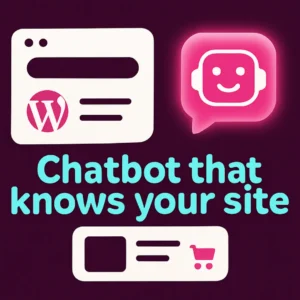
If your WordPress site answers the same questions over and over—product details, store hours, return policies—adding an AI chatbot can reduce repetitive support work and help visitors convert faster. By “lightweight” I mean a chat solution that loads quickly, indexes only your site content, and doesn’t force heavy, always-on bundles that slow pages or bloat your hosting costs.
Primary question this article answers
How do you add a fast, accurate AI chatbot to WordPress (or WooCommerce) that knows your content, protects site speed, and helps conversion without extra complexity? Below you’ll find a practical plan, trade-offs, setup considerations, and real implementation tips.
Choose the right approach: hosted widget vs native WordPress plugin
There are two common routes:
- Hosted widget (embed snippet) — A third-party service hosts the AI and you paste a small JavaScript snippet into your theme or via a header/footer plugin. Pros: fast to add, easy updates, lower maintenance. Cons: external calls, possible data-sharing concerns.
- Native plugin — A WordPress plugin runs indexing and the UI inside your site. Pros: tighter WordPress integration (shortcodes, admin UI), sometimes better privacy. Cons: can add server load if poorly implemented.
Performance-first checklist for a lightweight WordPress AI chatbot
- Asynchronous loading: widget scripts must load after core page content to avoid blocking LCP.
- Selective indexing: index only pages, posts, and product types you want the bot to use (avoid indexing admin pages or development content).
- Cache-friendly behavior: the bot should not prevent CDN or page-cache operation; prefer API calls that don’t require pages to be uncacheable.
- Rate limits & fallbacks: have a low-cost fallback message if the AI backend is slow or unavailable.
- Privacy & data flow: understand where visitor messages are sent and how long transcripts are stored.
How to train a chatbot on your WordPress content
A quality WordPress AI assistant learns from your site: pages, blog posts, product descriptions, help docs, and FAQs. A practical training flow looks like this:
- Decide the content scope—product pages and support docs are highest value for customers.
- Run an indexing job that extracts titles, headings, product SKUs, and short excerpts rather than full raw HTML.
- Attach metadata—URLs, product IDs, or categories—so the bot can return precise links in answers.
- Review and test: ask real, common customer questions and verify the bot cites correct pages or product cards.
WooCommerce considerations: product search and recommendations
For shops, prioritize structured product data. A lightweight WooCommerce chatbot should:
- Index product title, short description, price, stock status, and attributes.
- Support natural-language filters (“show red running shoes size 10”) if the underlying search supports semantics or vector matching.
- Offer clear product links and an easy path to cart or contact for complex queries.
Integration examples and real-world setup steps
Two practical ways to add a lightweight AI assistant:
- Embed a vetted hosted widget: sign up, restrict indexing to your domain, copy the snippet, and paste it into your theme header or WPCode. Test performance and use your browser DevTools to ensure the script is non-blocking.
- Install a lightweight native plugin: choose a plugin that offers on-demand indexing and asynchronous scripts. Configure which post types to index, and enable a product-based fallback for slow responses.
For step-by-step guidance on training a chatbot on your site content see ChatPress’s practical walkthrough on training site-aware chatbots. Also consider WordPress’ performance guidelines when assessing plugin impact on site speed (the WordPress performance handbook explains caching and plugin impact in detail). WordPress performance guidelines.
Common mistakes to avoid
- Indexing everything by default—this produces noisy answers and increases index size.
- Choosing a plugin with heavy UI bundles loaded site-wide instead of conditionally when the chat opens.
- Not testing eCommerce flows—make sure the bot’s product links and stock info are up to date.
- Ignoring privacy—publish a clear chatbot data policy if the widget sends messages to third-party servers.
Measuring success: KPIs that matter
- Reduction in repetitive support tickets or form submissions.
- Average time-to-first-answer for visitors.
- Click-through rate from chat answers to product or contact pages.
- Site speed metrics (LCP, CLS) before and after implementation.
Helpful further reading inside your WordPress dashboard
If you want to explore how a custom chatbot can change your site, read this practical piece about Why Your WordPress Website Needs a Custom Chatbot and the deeper walkthrough on how to Revolutionize Your WordPress Site with Custom Chatbots. Both posts show use cases and setup details that complement the steps above.
FAQ
1. Will an AI chatbot slow down my WordPress site?
No—if you choose a lightweight implementation that loads scripts asynchronously, indexes selectively, and avoids site-wide heavy bundles. Always test performance in a staging environment and use page-speed tools to measure impact.
2. Can a chatbot be trained only on my WooCommerce products?
Yes. Most modern site-aware chatbots let you restrict indexing to product post types and include product attributes so answers link directly to SKUs and product pages.
3. How do I protect customer privacy with a third-party AI chatbot?
Review the vendor’s data retention and processing policies, disable transcript storage if possible, and present a clear privacy notice on your site. For sensitive use cases consider a self-hosted or privacy-focused vendor.
4. What’s the quickest way to add a chatbot to WordPress?
Sign up for a reputable hosted chatbot, restrict indexing to your domain, and paste the provided embed snippet into your site header or use a plugin to insert it. Then test common questions and adjust indexing rules.
5. Can a chatbot understand natural language search on my site?
Yes—if the backend supports semantic or vector search. For full natural-language understanding, pair the chatbot with a search system designed for semantics rather than keyword-only indexes.
6. Will a chatbot improve conversions?
Often yes—when the chatbot answers product questions quickly, surfaces the right product links, and reduces friction in the buyer journey. Measure against your baseline conversion rate to verify impact.
Watch: practical setup video
Below is a trusted walkthrough showing top AI chatbots for websites and practical setup tips from WPBeginner. The video helps you compare vendors and see live demos.
Conclusion and next steps
Start with a limited pilot: index high-value pages or products, measure support volume and conversion impact, then expand scope. If you’d like help planning a lightweight chatbot rollout tailored to your site and conversion goals, contact Emily’s Interiors for a no-pressure consultation.
Frequently Asked Questions
Will an AI chatbot slow down my WordPress site?
Not if it’s implemented as a lightweight solution that loads scripts asynchronously and indexes only selected content. Test in staging and measure LCP and other speed metrics before and after.
Can a chatbot be trained only on WooCommerce products?
Yes—you can restrict indexing to product post types and include product attributes so the bot returns precise product links and stock info.
How do I protect customer privacy when using a hosted chatbot?
Review the vendor’s data policies, opt out of transcript retention if offered, and disclose the data flow to visitors. For sensitive needs, consider self-hosted or privacy-first vendors.
What’s the fastest way to add a chatbot to WordPress?
Use a reputable hosted chatbot, restrict indexing to your domain, paste the embed snippet into your site (header or via a plugin), and test common queries.
Does semantic search improve chatbot answers?
Yes—semantic or vector-based search lets the chatbot understand intent better than keyword-only systems, producing more accurate and conversational answers.
How will I know if the chatbot improves conversions?
Track support ticket volume, chat-to-conversion click rates, and overall conversion rate changes compared to a baseline; run A/B tests when possible.