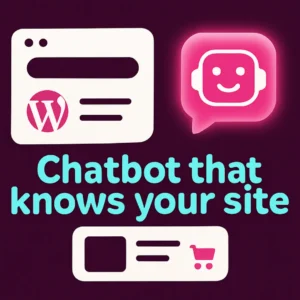
Adding an AI chatbot to your WordPress site can feel like a big technical project — but for most sites you don’t need heavy enterprise tools. A lightweight AI chatbot that indexes your site’s content can act as an instant auto-attendant, answer product questions, guide visitors to the right pages, and lift conversions without slowing your site down. This guide explains how to choose, plan, and add a fast WordPress AI chatbot that actually knows your website content.
Why choose a lightweight WordPress AI chatbot
Not all chatbots are equal. Large, feature-packed platforms can be useful for enterprise support teams, but they often add bloat, slow page loads, and increase cost. A lightweight WordPress AI chatbot focuses on three practical goals:
- Answers from your content: It indexes pages, posts, and product data so replies link directly to your site.
- Fast, low-overhead performance: Minimal front-end footprint and efficient requests to avoid harming site speed.
- Conversion- and support-focused features: Quick lead capture, simple product recommendations, and canned flows for common questions.
Primary question this article answers
How can you add an AI chatbot to WordPress or WooCommerce that understands your website content, stays lightweight, and helps customers find products or answers without painful setup?
Plan before you install: what to decide first
- Goal: Do you want support automation, product discovery, lead capture, or all three? Pick primary goals to guide configuration.
- Scope of content: Will the bot index blog posts only, or also product pages, FAQs, and PDFs? The more sources, the richer answers — but plan storage and indexing frequency.
- Performance limits: Choose a plugin or service that uses efficient vector search or on-demand indexing and offers caching to prevent load spikes.
- Privacy & hosting: Decide whether chat data and indexed content remain on your host or pass through a third-party API. This affects compliance and latency.
Choosing the right plugin or approach
Look for these practical features when evaluating WordPress AI chatbot plugins:
- Website-aware indexing: The bot must read your pages and product data, not just rely on general knowledge models.
- Vector or semantic search: Helps the bot match user intent rather than keywords, producing more accurate product or support answers.
- Lightweight front-end widget: Small script size, async loading, and lazy initialization keep page speed healthy.
- WooCommerce integration: If you run a store, confirm the plugin can access product metadata, variants, stock, and pricing.
- Control over tone & links: The ability to configure reply style, and to include direct links to relevant pages, improves trust and conversions.
Compare cost vs. control
Hosted AI chat services often charge by usage and handle model updates, while self-hosted or on-prem indexing gives more control and predictable costs but requires setup. For most small‑to‑medium WordPress sites, a hybrid approach (local indexing + API for model responses) gives a good balance of speed, accuracy, and cost control.
Setup checklist — fast path to a working chatbot
- Pick the plugin: Choose a lightweight plugin that explicitly supports indexing WordPress content and WooCommerce (if needed).
- Create a staging snapshot: Always test the bot on a staging site to verify indexing, content coverage, and appearance.
- Index content: Configure which post types and product fields to index. Include product titles, short descriptions, FAQs, and key help pages.
- Configure widget behavior: Set initial greetings, offline messages, and fast replies for common queries (shipping, returns, sizing).
- Test typical flows: Ask natural questions (e.g., “Which shoes are best for wide feet?”) and validate that answers point to the right pages and products.
- Measure impact: Track chat starts, click-throughs from answers, leads captured, and any sales attributed to the bot.
Common mistakes and how to avoid them
- Indexing everything by default: Don’t index private drafts, staging pages, or large binary files unnecessarily — they add noise. Limit to public posts, key product fields, and help docs.
- Poor answer provenance: Ensure the chatbot shows links or references to the source page when it answers; this builds trust and reduces support callbacks.
- Overloaded widget: Avoid adding too many UI features (heavy animations, large images) which hurt page speed. Keep the interface minimal and responsive.
- No fallback: Always provide a clear fallback to human support (email, ticket, phone) when the bot can’t answer confidently.
Examples of useful bot configurations
- Ecommerce product finder: A short set of guided questions (category, budget, use-case) then direct product recommendations with add-to-cart links.
- Knowledge base auto-answer: Index FAQs and help docs so customers get precise troubleshooting steps and links to the full article.
- Lead capture + triage: Collect basic info (email, intent) then route high-value leads to sales with a scheduled call or demo link.
For a step-by-step tutorial on adding a chatbot to WordPress, WPBeginner’s walkthrough covers practical plugin installation and configuration details you can follow along with. See the WPBeginner guide for additional installation tips.
Next steps and testing tips
Roll out the bot in phases: enable it for a percentage of visitors, monitor behavior and speed metrics, and iterate on reply templates. Use real visitor queries to expand indexed documents and fine-tune product recommendations.
Useful internal resources
If you’re evaluating custom chat experiences, our post on why your WordPress website needs a custom chatbot explains how training on your content improves relevance. For examples of how custom chatbots change workflows and conversions, read how custom chatbots can revolutionize your WordPress site.
Visible FAQ
How does a chatbot ‘know’ my website content?
Lightweight AI chatbots index your public posts, product pages, and help docs by extracting text and metadata. The bot uses semantic or vector search to match user queries with those indexed passages and then formats answers that include links to the original pages.
Will adding a chatbot slow down my site?
Not if you choose a plugin designed for performance. Look for async widget loading, small script size, local caching, and server-side indexing. Test performance on a staging site and monitor real user metrics after launch.
Can a chatbot recommend WooCommerce products?
Yes. When the chatbot indexes product titles, descriptions, categories, and attributes it can match intent and return product suggestions, direct links, and sometimes add-to-cart actions depending on the plugin.
How do I keep chat data private or compliant?
Check whether chat transcripts and indexed content are stored locally or sent to a third-party API. Choose a configuration that aligns with your privacy policy and any regulations that apply to your visitors (e.g., GDPR). Avoid sending sensitive data to external services unless necessary.
Do I need custom training for the bot to perform well?
Not always. Many site-aware chatbots work well by indexing your existing content and using semantic search. Custom training or fine-tuning helps if you have highly specialized product knowledge or unique workflows.
How should I measure chatbot success?
Track conversion events (form fills, purchases), engagement (chat starts, replies clicked), time to answer, and reduction in support tickets. Small A/B tests can show whether the chatbot improves KPIs like cart completion or lead form submissions.
This video demonstrates a practical, step-by-step setup for adding an AI chatbot to WordPress and is a useful complement to the steps above.
Ready to try a lightweight, content-aware chatbot on your site? If you’d like hands-on help configuring a fast, focused bot that improves conversions and stays lean, contact Emily’s Interiors for a friendly consult.
Frequently Asked Questions
How does a chatbot 'know' my website content?
Lightweight AI chatbots index public posts, product pages, and help docs by extracting text and metadata. They use semantic search to match questions to those indexed passages and include links to source pages in replies.
Will adding a chatbot slow down my site?
Not if you choose a plugin built for performance: look for async loading, small widget scripts, local caching, and server-side indexing. Always test on staging and monitor real-user metrics after launch.
Can a chatbot recommend WooCommerce products?
Yes. When product titles, descriptions, categories, and attributes are indexed, the bot can match customer intent and return product recommendations with direct links or add-to-cart actions depending on the plugin.
How do I keep chat data private or compliant?
Decide whether transcripts and indexed content stay on your server or are sent to a third-party API. Configure retention, anonymization, and your privacy policy to match applicable regulations like GDPR where relevant.
Do I need custom training for the bot to perform well?
Not always. Indexing quality content plus semantic retrieval often suffices. Custom training helps when you need highly specialized answers, branded voice, or domain-specific behaviors.
How should I measure chatbot success?
Track conversion events (form fills, purchases), chat engagement (starts and clicks), reduction in support tickets, and time-to-answer. A/B testing chat variants helps quantify impact on business metrics.