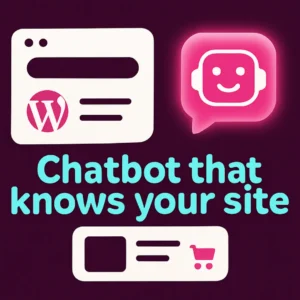
Adding an AI chatbot for WordPress can turn passive visitors into engaged customers, reduce repetitive support tasks, and help people find products or information faster. This guide explains a practical, site-first approach: choose a chatbot that indexes your own WordPress content (posts, pages, product descriptions, FAQs) and configures it to behave as an auto-attendant and sales assistant for your site.
Why choose a chatbot trained on your WordPress content?
Generic chatbots answer obvious questions, but an AI chatbot for WordPress that’s trained on your site gives accurate, linkable answers and points visitors to the exact page or product they need. That improves trust, reduces bounce rate, and increases conversions because answers are grounded in your live content rather than generic knowledge.
Plan before you install: goals, scope, and user journeys
Start by defining what you want the chatbot to do. Common goals for WordPress owners include:
- Answering support questions using knowledge from your documentation and blog posts.
- Helping shoppers find WooCommerce products by natural-language search and product cards.
- Collecting leads or routing requests to sales/support teams.
- Reducing support tickets by auto-resolving common issues.
Map 2–3 typical visitor journeys (for example: product discovery → product page → add to cart; or account help → order status page → open ticket) and use those flows to test the chatbot after setup.
Content indexing: what to include and what to exclude
A chatbot’s usefulness depends on the content it indexes. Include:
- Product titles, descriptions, SKUs, and attributes for WooCommerce stores.
- How-to articles, support docs, shipping and returns pages, FAQs, and policy pages.
- Structured data like product images and prices so the bot can show product cards.
Exclude internal notes, development drafts, or admin-only pages. If the plugin offers a preview mode, test how answers reference pages and whether responses include direct links back to your live content.
Performance and privacy considerations
An AI chatbot adds frontend assets and may call external APIs. To keep your site fast, configure lazy-loading, limit the chat widget’s load-on-scroll or button-triggered appearance, and choose a plugin that supports caching of index data. Protect customer data by ensuring the plugin anonymizes or doesn’t send sensitive fields to third parties and by updating its privacy settings to comply with your policies.
Choosing features that matter for WordPress owners
Accurate site-aware answers
Prioritize chat plugins that explicitly “read” and reference your WordPress pages and product catalog so responses can include exact links. That makes the bot an extension of your website rather than a separate knowledge base.
WooCommerce product cards and checkout handoff
If you run a store, look for product-card support: the bot should show images, prices, and a direct link to add items to cart. Many modern WooCommerce assistants include this behavior in their documentation and admin settings; you can read more about how WooCommerce implements AI shopping assistants in its product documentation for implementation details and compatibility notes. WooCommerce: AI Shopping Assistant documentation.
Customization and tone
Set the bot’s tone and name so it matches your brand voice. Good plugins let you edit greetings, canned replies, and the bot’s persona from the WordPress admin panel without code.
Testing checklist before you go live
- Verify the bot correctly links to product pages and documentation pages in its answers.
- Check response accuracy on 10–20 real user queries (product search, refund policy, shipping times).
- Confirm the widget does not slow initial page load and is mobile responsive.
- Test order-related flows if you use WooCommerce: product discovery, add-to-cart links, and answers about stock and shipping.
- Ensure analytics are enabled so you can measure conversation success and unanswered questions.
Common mistakes to avoid
- Skipping content curation: bots work better when you remove outdated pages and consolidate duplicate docs.
- Relying on default settings: customize greetings, fallback answers, and routing rules to match your support capacity.
- Not training the bot on product data: without product metadata the bot can answer but won’t present purchase-ready cards.
How to measure success
Track metrics that map to your goals: conversations started, resolution rate (questions answered without agent handoff), clicks to product pages from the chat, conversion lift on pages where the chat appears, and reduction in support tickets. Use these signals to iterate—add or remove indexed pages, tune canned replies, and adjust user flows.
Quick setup roadmap (30–90 days)
- Week 1: Define goals, choose a plugin, and configure indexing scope.
- Week 2–3: Customize tone, test product card responses, and fix indexing gaps.
- Month 1: Launch soft for a portion of traffic and collect analytics.
- Month 2–3: Refine answers, expand indexed content, and run A/B tests on placement and messaging.
Tools and resources
If you want a deeper primer on custom chatbots trained on your site, see our post on why site-trained chatbots help your WordPress site answer visitor questions more accurately and how to get started with training your chatbot. For pricing and plan details when you’re ready to compare features, visit our pricing page.
Why You Need a Custom Chatbot Trained on Your WordPress Content • ChatPress.AI Pricing
Conclusion
An AI chatbot for WordPress that understands your site content is one of the fastest ways to deliver better customer support and improved product discovery. Plan the scope, prioritize site-indexing and product-card features for WooCommerce stores, and test thoroughly before full launch. With the right setup you’ll see fewer routine support tickets and clearer paths to conversion.
Frequently asked questions
1. Will an AI chatbot slow down my WordPress site?
Good chat plugins load assets carefully (lazy or on interaction) and offer caching for index data. Choose a plugin with performance optimizations and test on mobile before rolling out site-wide.
2. Can a chatbot access order data and help customers with order status?
Yes—when integrated with WooCommerce and allowed by your settings, the chatbot can reference order status and point customers to their account pages. Only enable this after confirming secure access and privacy settings.
3. How does the chatbot find answers on my site?
The plugin indexes pages, posts, and product records into a searchable knowledge layer. The AI matches user queries to that indexed content and returns answers that include links to original pages.
4. What types of queries are best handled by a site-trained chatbot?
Product discovery, shipping and returns, feature comparisons, basic troubleshooting, and links to documentation are all well-suited to a site-trained chatbot. Complex technical support may still require human agents.
5. Do I need a developer to set this up?
Many modern plugins offer WordPress admin interfaces so marketers and site owners can configure indexing and tone without code. Stores with custom data structures may need light developer help for full product integration.
6. How do I keep answers accurate as my site changes?
Use automatic re-indexing (daily or weekly) and a short review cycle for product or policy changes. Monitor unanswered questions in analytics and add or update content where gaps appear.
This video from WPBeginner shows practical plugin options and setup tips that complement the steps above.
If you’d like help scoping a chatbot for your WordPress site, contact our team and we’ll recommend a plan tailored to your content and goals.
Frequently Asked Questions
Will an AI chatbot slow down my WordPress site?
Good chat plugins load assets on interaction and provide caching for index data. Choose a solution with performance options and test on mobile before site-wide rollout.
Can the chatbot show product cards for WooCommerce products?
Yes—when the chatbot indexes WooCommerce product data it can show images, prices, and direct links to product pages so visitors can add items to cart.
How often should I re-index my site content for the chatbot?
Re-index weekly or daily for active stores; less frequently for small blogs. Frequent re-indexing keeps answers current after product or policy changes.
Does the chatbot require developer work to integrate with custom themes?
Many plugins work without code, but custom themes or nonstandard product data may need light developer help to expose the necessary fields to the indexer.
How do I measure whether the chatbot improves conversions?
Track conversation starts, clicks from chat to product pages, conversion lift on chat-enabled pages, reduction in support tickets, and the bot’s resolution rate without agent handoff.
Is customer data sent to third parties by default?
That depends on the plugin. Review privacy settings and data handling in the plugin’s documentation and disable any unnecessary telemetry before going live.