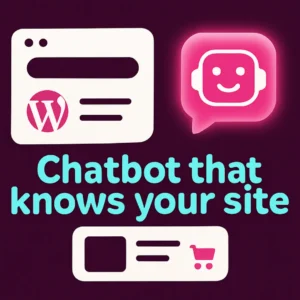
A lightweight AI chatbot for WordPress can answer visitor questions, guide shoppers, and reduce repetitive support tasks without slowing your site. This article shows how to choose and add a fast, content-aware chatbot to a WordPress or WooCommerce site, what to expect from performance, and practical setup tips so the bot actually helps conversions and support.
Why choose a lightweight WordPress AI chatbot
Not all chatbots are equal. Some add heavy JavaScript, proxy traffic through third-party servers, or require complex configuration. A lightweight WordPress chatbot prioritizes fast load times, small resource footprint, and direct access to your site content so responses are accurate. That makes it a better fit for marketing sites and stores that need speed and reliability.
Primary question this article answers
Which AI chatbot for WordPress gives you accurate answers drawn from your site content while staying fast and easy to maintain? You’ll learn what to look for in a plugin, trade-offs to expect, and concrete steps to add a content‑aware chatbot that won’t bloat your theme or slow your pages.
What “content-aware” means
A content-aware chatbot is trained or configured to read your site (pages, posts, product descriptions, FAQs) and use that content as the basis for answers. This avoids generic responses and reduces the chance the bot suggests information that contradicts your site. For many businesses this is the critical difference between a helpful assistant and a confusing one.
Key decision factors before you install
- Speed: choose a plugin that defers heavy scripts and loads only when the widget is opened.
- Source of truth: confirm how the plugin ingests content (indexing, periodic crawl, or on‑the‑fly retrieval).
- Privacy and data flow: check whether queries are proxied through the vendor or handled via your own API key.
- WooCommerce support: if you run a store, ensure product metadata and SKU info can be included in the knowledge base.
- Customization: ability to tune tone, canned replies, and escalation to live agents.
- Cost and scaling: factor in token or message pricing if the plugin uses paid LLMs.
Comparison: lightweight vs full-featured chatbot
Both styles have valid uses. Full-featured platforms often include omnichannel routing, dashboards, and analytics but can add complexity and slower front-end performance. Lightweight plugins focus on core visitor-facing behavior—fast widget, concise answers, and simple admin controls—making them ideal for most WordPress sites that want an autoattendant and content-driven Q&A.
Common mistakes to avoid
- Assuming the bot understands unpublished or third-party content—index the exact sources you want it to use.
- Ignoring page speed—test before and after install with Lighthouse or PageSpeed tools.
- Not configuring fallback flows—provide a clear “I don’t know” path and a contact escalation option.
How to add a content-aware AI chatbot to WordPress (practical steps)
- Audit your content sources. Decide which posts, product pages, FAQs, and docs the bot should read. Clean up outdated or contradictory content first.
- Choose a lightweight plugin that supports site indexing. Look for plugins that let you build a knowledge base from WordPress content or upload structured docs for product Q&A.
- Decide where answers are generated. Prefer plugins that use your own API key (so you control costs and data) or a vendor that documents data handling clearly.
- Test for speed and relevance. After setup, run a few real visitor queries and measure first contentful paint and widget load time. If the widget adds >200–300ms to initial loads, consider optimized lazy loading options.
- Tune the conversation. Add quick-reply buttons, product links, and a fallback escalation to human support. For WooCommerce sites, enable product lookup so the bot can return accurate SKUs and availability.
- Monitor and iterate. Check conversation logs weekly for common misses and add clarifying content to the indexed sources or update the bot’s canned replies.
Planning for WooCommerce: product search and recommendations
If you run WooCommerce, the chatbot can be a powerful product finder. Ensure the plugin indexes product titles, short descriptions, attributes, and SKU fields. Also plan how the bot will surface product cards and add-to-cart links to keep interactions concise and conversion-focused.
Lightweight performance tips for stores
- Index a curated subset of products for fast vector search (e.g., best-sellers and current inventory).
- Enable query filters so the bot can handle stock or variant-level questions without heavy model calls.
- Show product cards with image, price, and CTA rather than long product descriptions inside chat bubbles.
Real-world example and resources
Many site owners start by following a step-by-step setup guide to compare options and confirm performance. For a practical walkthrough you can reference a clear tutorial that outlines common setup steps and trade-offs; WPBeginner has a solid guide that shows how to add a chatbot to WordPress and what to watch for when configuring content sources and fallbacks (How to Add a Chatbot in WordPress — WPBeginner).
When to get help from an agency or developer
Ask for professional help if you need custom integrations (CRM, order lookups, or protected knowledge bases), strong performance SLAs, or if you want the bot to handle payments or sensitive account information. A lightweight plugin is excellent for most marketing and support tasks, but custom workflows often need developer attention.
Next steps checklist
- Identify the pages and product data the bot should index.
- Install a lightweight content-aware chatbot plugin and connect your preferred model or API key.
- Test responses and measure page speed impact.
- Tune quick replies, escalation, and product card displays for WooCommerce.
- Review conversation logs and update source content monthly.
Related reading
For more strategic ideas about training a chatbot on site content and the conversion benefits of a custom assistant, read our post on Why Your WordPress Website Needs a Custom Chatbot and the technical guide on how to Revolutionize Your WordPress Site with Custom Chatbots.
Frequently asked questions
1. Will an AI chatbot slow my WordPress site?
A well-built lightweight chatbot loads assets only when the widget opens and uses small JavaScript bundles; it should add minimal overhead. Always test with your theme and caching in place.
2. Can the chatbot answer questions about my products?
Yes—if the plugin indexes your WooCommerce product titles, descriptions, and metadata. Configure product card responses and enable SKU lookups if available.
3. How do I keep the chatbot’s answers accurate?
Limit its knowledge sources to controlled site pages and documentation, and update or remove outdated pages. Regularly review conversation logs and add clarifying content where the bot struggled.
4. Is visitor data sent outside my control?
That depends on the plugin. Prefer solutions that use your own API key or clearly document data handling. Review privacy policies and, if necessary, consult legal counsel for compliance.
5. Will a chatbot help conversions on WooCommerce?
Yes—when it can surface relevant products, answer availability questions, and present quick CTAs. Track assisted conversions to measure impact and refine recommendations.
6. How long does setup take?
A basic install and indexing can take 30–90 minutes. Tuning responses, product cards, and fallback flows typically takes a few days of iteration based on visitor queries.
The video above from WP Engine’s developer channel demonstrates practical integration patterns and a short code walkthrough that’s useful if you plan custom indexing or headless approaches.
If you’d like help choosing a fast, content-aware chatbot for your WordPress or WooCommerce site, contact Emily’s Interiors for a consultation and we’ll map the best option to your conversion and support goals.
Frequently Asked Questions
Will an AI chatbot slow my WordPress site?
A well-built lightweight chatbot loads assets only when opened and keeps scripts small; always test with your caching and theme to confirm the impact.
Can the chatbot answer questions about my WooCommerce products?
Yes—if the plugin indexes product titles, descriptions, attributes, and SKUs. Configure product card responses for concise, conversion-focused answers.
How can I keep the chatbot’s answers accurate?
Limit indexed sources to controlled pages, remove outdated content, and review conversation logs regularly to add clarifying content or update canned replies.
Is visitor data sent to third parties?
It depends on the plugin. Prefer solutions that let you use your own API key or clearly document data handling and retention policies to maintain control.
How much time does setup usually take?
A basic install and initial indexing can take 30–90 minutes; expect additional time over days for tuning and reviewing real user queries.
When should I hire a developer or agency?
Get professional help for custom CRM/order lookups, secure account flows, advanced product integrations, or if you need strict performance SLAs.